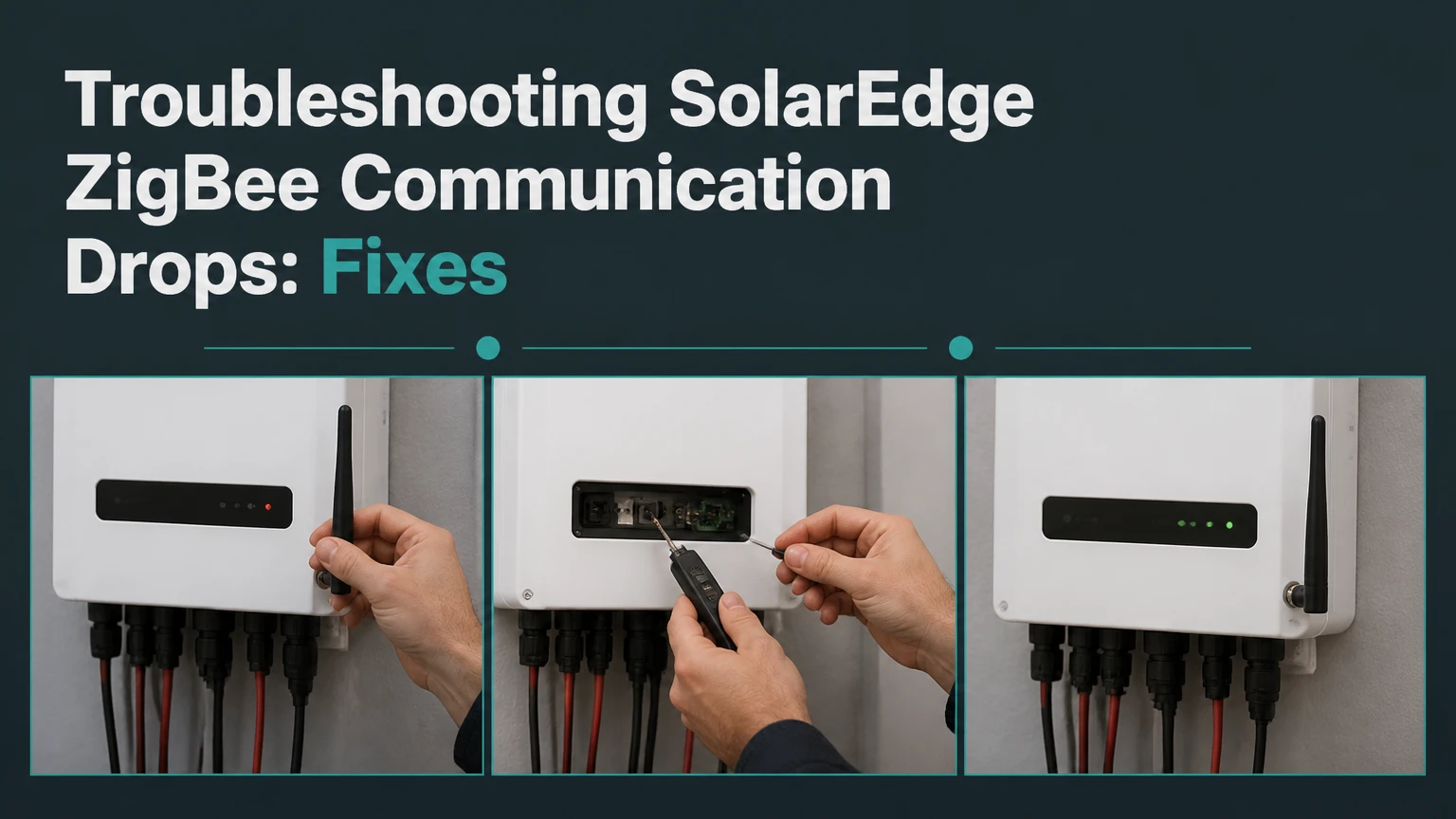
Troubleshooting SolarEdge ZigBee communication drops starts by separating an inverter-to-gateway radio fault from a gateway-to-router or cloud fault. Check inverter and gateway indicators, verify power and Ethernet, perform a controlled restart, then re-pair only when the local ZigBee link is actually lost. Most owner checks take 15-30 minutes.
Key Facts at a Glance
- SolarEdge ZigBee connects a ZigBee Plug-in card in the inverter to a ZigBee Home Gateway over a local 2.4 GHz radio link.
- The gateway sends inverter data to the router through Ethernet, so a working ZigBee link does not prove internet access.
- SolarEdge status labels and LED meanings vary between LCD inverter generations and SetApp gateway models.
- A new router usually does not require ZigBee re-pairing if the gateway remains powered and its Ethernet connection obtains network service.
- Repeated drops with strong local signal usually indicate gateway power, Ethernet, firmware, hardware, or cloud-side trouble rather than RF range.
- Owners should not remove inverter covers or touch internal communication boards; qualified solar personnel must handle internal access.
How SolarEdge ZigBee Communication Works
SolarEdge ZigBee communication uses two local devices: a plug-in card inside the inverter and a Home Gateway connected to the local router. The inverter records generation data, the card transmits it by radio, the gateway forwards it over Ethernet, and the router provides the internet path to the SolarEdge Monitoring Platform.
SolarEdge documentation describes the gateway as the network “master” and the inverter ZigBee card as the “slave.” That relationship matters during diagnosis: replacing or restarting the router cannot repair a failed radio link, while re-pairing cannot repair a broken Ethernet cable.
| Failure segment | Physical path | Typical symptom | First test |
|---|---|---|---|
| Inverter production | Panels, inverter, DC and AC equipment | Production or inverter alarms | Check inverter display or SetApp |
| ZigBee radio | Plug-in card, antenna, Home Gateway | Gateway Not Found, Master Not Found | Compare local status indicators |
| Gateway LAN | Gateway Ethernet port, cable, router port | Local link present, portal data stale | Test cable, port, router lease |
| Internet service | Router, ISP, DNS, cloud service | Multiple devices or portal access fail | Check router and ISP status |
| Monitoring account | Site assignment, platform, credentials | Data absent despite communication | Check MySolarEdge and installer records |
A monitoring outage does not automatically mean the solar array stopped producing power. SolarEdge inverters can continue local operation while the portal misses uploads. Confirm production locally before treating a communication fault as an energy-generation fault.
What Do the Status Indicators Mean?
A legacy LCD inverter commonly exposes a server or communication status such as <S_OK>, while newer SetApp systems expose communication states through the app and physical indicators. “Gateway Not Found” or “Master Not Found” generally points toward a local link problem, but LED colors and blink patterns must be matched to the exact gateway installation guide.
| Observation | Most likely fault domain | What it proves | Next action |
|---|---|---|---|
<S_OK> and current portal data | No active communication fault | Local and cloud paths recently worked | Monitor recurrence |
Gateway Not Found | ZigBee radio or gateway power | Inverter cannot find its paired gateway | Check gateway power and distance |
Master Not Found | Gateway discovery or pairing | Slave cannot reach master | Inspect pairing state and antenna |
| Gateway powered, no LAN link | Ethernet or router port | Radio device may still be alive | Replace cable or test another port |
| Local status normal, portal stale | Router, ISP, DNS, or cloud | Radio path may be healthy | Test network and platform access |
| Drops during rain or heat | RF attenuation, enclosure, power, or hardware | Timing correlation exists | Compare dry and wet-day logs |
Do not diagnose from a single blinking LED alone. SolarEdge produced multiple ZigBee gateway generations, and a yellow, orange, green, or blue indicator can have different meanings by model. Photograph the labels, LEDs, and display before changing settings.
Is RSSI Below a Fixed Threshold a Failure?
No universal SolarEdge ZigBee RSSI cutoff should be treated as a repair rule. Values near -70 dBm are commonly considered more comfortable than values near -85 dBm, but antenna orientation, packet retries, interference, gateway generation, and measurement timing also determine reliability.
The useful test is repeatability. If the signal is weak and drops correlate with weather, people moving near the antenna, or a newly installed metal object, improve placement first. If the signal remains strong while uploads fail, investigate power, Ethernet, IP addressing, firmware, and the monitoring platform instead.
Before You Start: Safety and Required Checks
An owner can inspect the gateway power adapter, Ethernet plugs, router port, visible antenna, and external status indicators. An owner should not open the inverter, reseat the ZigBee daughterboard, or work near DC terminals, because inverter components can retain hazardous voltage after shutdown.
| Item | Typical requirement | Owner action |
|---|---|---|
| Diagnostic time | 15-30 minutes | Photograph indicators and record timestamps |
| Reset time | 10-20 minutes | Restart router, gateway, and inverter in order |
| Tools | Phone, flashlight, spare Cat5e cable | No inverter cover removal |
| Replacement test | Known-good Ethernet cable | Use only compatible equipment |
| Installer work | Internal card or antenna access | Book a qualified technician |
| Electrical isolation | AC and DC procedures | Follow the inverter manual exactly |
SolarEdge manuals often specify waiting periods before equipment access, but the inverter model manual and local electrical rules control. A five-minute wait is a conservative interval used in many service procedures, not permission for an unqualified person to open the chassis.
Step-by-Step SolarEdge ZigBee Dropout Diagnosis
Step 1: Confirm the Failure Is Current
Open the SolarEdge monitoring platform or MySolarEdge and compare its last update time with the inverter’s local production reading. A stale portal with normal local production identifies monitoring as the immediate problem, not necessarily the photovoltaic system.
Record three facts:
- The last successful portal timestamp.
- The inverter communication message or SetApp state.
- The gateway power and LAN indicators.
If several internet devices also fail, repair the home network first. If only SolarEdge data is stale, continue with the gateway and ZigBee checks.
Step 2: Check Gateway Power and Ethernet
Plug the ZigBee gateway power supply directly into a known-good wall receptacle for diagnosis. Confirm that the adapter is firmly seated, the gateway indicators illuminate, and both Ethernet plugs click into place.
Replace the Ethernet cable with a tested Cat5e or Cat6 cable, then try a different router LAN port. Avoid assuming that a surge strip is the cause, because the stronger diagnostic is substitution: a direct outlet and known-good cable remove two variables at once.
Success checkpoint: the gateway shows power, the router reports a negotiated link, and the inverter or SetApp detects the gateway.
Common mistake: repeatedly re-pairing a gateway that has no power or no LAN connection.
Step 3: Restart the Network in the Correct Order
A controlled restart clears temporary gateway, router, and inverter state. It does not repair a damaged antenna, incompatible firmware, poor RF placement, or an internet service outage.
- Stop the inverter using the model-specific normal shutdown procedure.
- Turn off the relevant solar AC supply only if the manual or installer procedure requires it.
- Unplug the ZigBee gateway and router.
- Wait at least five minutes when the service procedure calls for capacitor discharge.
- Start the router and wait until normal internet service returns.
- Power the gateway and wait several minutes for LAN initialization.
- Restart the inverter according to its manual.
- Check the local communication state and portal timestamp.
Success checkpoint: the gateway returns to its normal indicator pattern and a new portal update appears.
Common mistake: powering the inverter before the router and gateway have completed startup.
Step 4: Re-Pair the ZigBee Network
Re-pair only when the inverter cannot discover the gateway after power and Ethernet checks. Re-pairing is not a general cure for every stale dashboard and can erase or replace communication parameters, so capture existing settings and involve the installer when access is restricted.
On supported legacy LCD systems, the usual path is Communication, Server, ZigBee, ZigBee Conf. The exact menu labels differ by firmware and inverter family. A technician may load ZigBee defaults, confirm the intended protocol, then start pairing from the gateway configuration control.
Some legacy procedures use the password 12312312, but that credential is model-specific and should not be assumed for every SolarEdge product. On SetApp systems, use the authorized installer workflow rather than forcing an LCD-era procedure onto a newer inverter.
Press the gateway pairing or configuration control only according to its installation guide. Do not hold a button for a fixed duration copied from another model unless the guide confirms that duration. Pairing can take several minutes.
Success checkpoint: the inverter reports a healthy local connection, such as <S_OK>, and the monitoring platform receives a fresh timestamp.
Common mistake: resetting the inverter before recording its original ZigBee protocol and network settings.
Step 5: Improve Antenna Position and Radio Conditions
The external antenna should be firmly connected, vertically oriented where the installation guide specifies, and separated from large metal surfaces. Thick reinforced concrete, foil-backed insulation, metal cabinets, water tanks, and inverter enclosures can reduce the usable path even when the nominal distance is short.
SolarEdge ZigBee equipment operates in the 2.4 GHz region, where Wi-Fi, Bluetooth, microwave ovens, and other industrial, scientific, and medical devices may compete for spectrum. ZigBee range is therefore a site result, not a guaranteed distance.
| Site condition | Typical effect | Practical correction | Verification time |
|---|---|---|---|
| 10 m open indoor path | Low obstruction | Keep antenna vertical | 1-2 hours of monitoring |
| 15 m through concrete | High attenuation | Relocate gateway or use Ethernet | 1-3 hours |
| Inverter beside metal duct | Reflections and nulls | Move antenna clear of metal | Same day |
| Gateway beside Wi-Fi router | Local 2.4 GHz crowding | Separate devices by 1 m or more | 30-60 minutes |
| Outdoor inverter behind masonry | Variable penetration | Place gateway on nearer side | Several daylight cycles |
A channel change may help, but ZigBee and Wi-Fi channel plans overlap differently by region and product configuration. Do not blindly force Wi-Fi to channel 1 or 6; first check the gateway’s configured ZigBee channel and nearby 2.4 GHz congestion.
Step 6: Escalate Internal Hardware Checks
A loose ZigBee plug-in card, damaged antenna lead, failed gateway power supply, or incompatible card can produce persistent “not found” errors. Internal inspection requires qualified solar personnel because the communication board sits inside equipment connected to live generation hardware.
Ask the technician to verify the card seating, connector pins, antenna cable, gateway model, firmware compatibility, and event history. A replacement card should match the inverter family and approved communication architecture, not merely share the ZigBee name.
Why Do SolarEdge ZigBee Drops Keep Returning?
Recurring drops usually result from marginal RF conditions, unstable gateway power, failing Ethernet hardware, or a device compatibility problem. A successful pairing proves that devices exchanged enough packets once; it does not prove that the link has adequate margin under heat, rain, interference, or router load.
| Recurrence pattern | Higher-probability cause | Evidence to collect | Preferred remedy |
|---|---|---|---|
| Every evening | Wi-Fi or nearby device activity | Drop timestamps and channel map | Improve RF separation |
| After heavy rain | Water attenuation or outdoor connector | Weather and signal correlation | Inspect enclosure and antenna |
| After router replacement | LAN, DHCP, or security setting | Router lease and port status | Reconfigure LAN, then reboot |
| Randomly every few days | Power adapter or gateway fault | Gateway reboot history | Test adapter or gateway |
| Only after inverter restart | Pairing or firmware state | Startup logs and firmware | Installer compatibility check |
| Strong local link, stale portal | Internet or platform path | Router and portal status | Repair LAN or escalate cloud issue |
An installer should also check firmware and approved compatibility documentation rather than rely on an unofficial version threshold. The frequently repeated claim that every system below a particular firmware version has the same ZigBee timeout is too broad without the inverter model, gateway revision, and release notes.
After a Router or ISP Change
Changing the ISP or router does not normally alter the ZigBee radio pairing, because the radio network and the household IP network are separate layers. The change can still interrupt monitoring if the gateway loses DHCP service, the Ethernet port changes, outbound traffic is filtered, or the gateway is left unpowered.
Use this order:
- Confirm another device reaches the internet.
- Confirm the gateway Ethernet link.
- Check whether the router issued the gateway an IP lease.
- Reboot router, gateway, and inverter.
- Re-pair only if the inverter reports loss of the gateway itself.
A DHCP reservation can reduce address changes for some gateway models, but it cannot strengthen the radio link or fix a dead adapter. Configure a reservation only after identifying the gateway MAC address and confirming that the gateway supports the expected LAN behavior.
Which Replacement Connection Is Best?
Hardwired Ethernet is usually the most dependable replacement when cable routing is practical. Cellular is more independent of household broadband, while a newer SolarEdge communication platform may fit modern systems better, but compatibility, availability, and recurring service requirements must be checked before purchase.
| Connection | Typical hardware cost | Recurring cost | Best condition | Main limitation |
|---|---|---|---|---|
| Cat5e or Cat6 Ethernet | $30-$350 installed | $0 beyond internet | Cable route under 30-50 m | Wall or conduit work |
| Cellular modem | $150-$350 | $5-$20/month typical | Reliable local coverage | Carrier and service dependency |
| Replacement ZigBee gateway | $120-$200 typical | $0 | Existing compatible system | Aging legacy ecosystem |
| SolarEdge Home communication | $150-$350 typical | Product-dependent | Modern compatible inverter | Model and accessory limits |
The figures above are typical service-market ranges, not SolarEdge quotations. Labor, region, tax, shipping, roof access, and discontinued-stock pricing can change the total substantially.
When Should You Stop Repairing ZigBee?
Stop repeated pairing attempts when the gateway has stable power and Ethernet, the antenna has a clear position, and the local link still drops after a controlled test period. At that point, a technician should compare the cost of a gateway, card, or antenna with a permanent Ethernet run or an approved modern communication upgrade.
Legacy ZigBee is not a good choice for a new long-distance installation where Ethernet is easy to route. It remains reasonable to repair when the inverter is otherwise healthy, the radio path is short, and compatible replacement parts are available.
Typical Repair Time and Cost
Owner-level diagnosis commonly takes 15-30 minutes, while antenna relocation or cable routing can take one to two hours. Installer cases involving discontinued hardware, compatibility checks, or replacement parts may take several business days.
| Work item | Typical duration | Typical cost | Who should perform it |
|---|---|---|---|
| Gateway and Ethernet check | 15-30 minutes | $0-$50 | System owner |
| Controlled restart | 10-20 minutes | $0 | System owner, manual permitting |
| Re-pairing visit | 30-60 minutes | $100-$250 | Installer |
| Antenna relocation | 1-2 hours | $150-$350 | Qualified technician |
| Gateway replacement | 1-3 hours | $120-$400 total | Qualified technician |
| Ethernet retrofit | 1-4 hours | $200-$700 total | Electrician or installer |
Costs are typical estimates and should be treated as planning figures. A communication fault can also be covered by an installer workmanship warranty or equipment warranty, so document the error, serial numbers, photos, and timestamps before authorizing replacement.
Common Mistakes and Their Recovery
- Re-pairing before checking power: restore gateway power and Ethernet first, then reassess the local status.
- Treating stale portal data as inverter failure: compare the portal timestamp with local inverter production.
- Moving the gateway next to the router: Ethernet needs proximity to the router, but the radio needs a usable path to the inverter. Relocate the gateway or extend Ethernet when those requirements conflict.
- Using an LCD password on SetApp equipment: stop and use the authorized installer workflow.
- Forcing a Wi-Fi channel without measuring interference: record the current ZigBee channel and test one controlled network change.
- Opening the inverter as a first step: stop, reinstall external covers if safe, and arrange qualified service.
The most counterintuitive rule is that a gateway can have excellent internet access and still have no inverter communication. Ethernet status validates only the gateway-to-router segment.
FAQ
Does SolarEdge ZigBee control solar production?
No. SolarEdge ZigBee primarily carries monitoring and communication data between the inverter and gateway. A ZigBee outage can make the app stale while the inverter continues producing electricity, although separate inverter alarms can affect production and require immediate attention.
How many ZigBee devices can one SolarEdge gateway support?
Published SolarEdge documentation lists system-specific device limits, and the practical limit depends on the gateway generation and configured protocol. Do not apply a claimed universal limit, such as 15 slaves, without checking the exact datasheet and installer configuration for the site.
Can thick walls cause SolarEdge monitoring drops?
Yes. Reinforced concrete, foil insulation, metal cladding, and equipment cabinets can attenuate or reflect 2.4 GHz radio signals. A shorter path through fewer dense materials can outperform a longer open-air estimate, so antenna and gateway placement should be tested before replacing hardware.
Will a factory reset erase production history?
A communication reset should not erase cloud production history already uploaded to the SolarEdge Monitoring Platform, but loading defaults can alter local communication parameters. Record settings first and ask the installer to confirm the reset scope for the inverter model.
Is a SolarEdge cellular connection better than ZigBee?
Cellular removes the inverter-to-gateway radio path and can avoid household router changes, but it introduces coverage and subscription dependencies. Ethernet is usually the stronger choice where a permanent cable is practical; cellular fits remote sites with reliable signal and no convenient LAN route.
When should I contact SolarEdge support?
Contact the installer or SolarEdge support when the inverter repeatedly reports a missing gateway, internal card access is required, compatible parts are uncertain, or the gateway has power and Ethernet but the portal remains stale after a documented restart. Provide serial numbers, firmware, timestamps, LED photos, and router test results.
The Bottom Line
Troubleshooting SolarEdge ZigBee communication drops works best as fault isolation: confirm local production, inspect gateway power and Ethernet, restart the network in order, then re-pair only when the radio link is missing. Improve antenna placement before buying hardware, and choose Ethernet or an approved communication upgrade when an aging ZigBee path repeatedly fails.