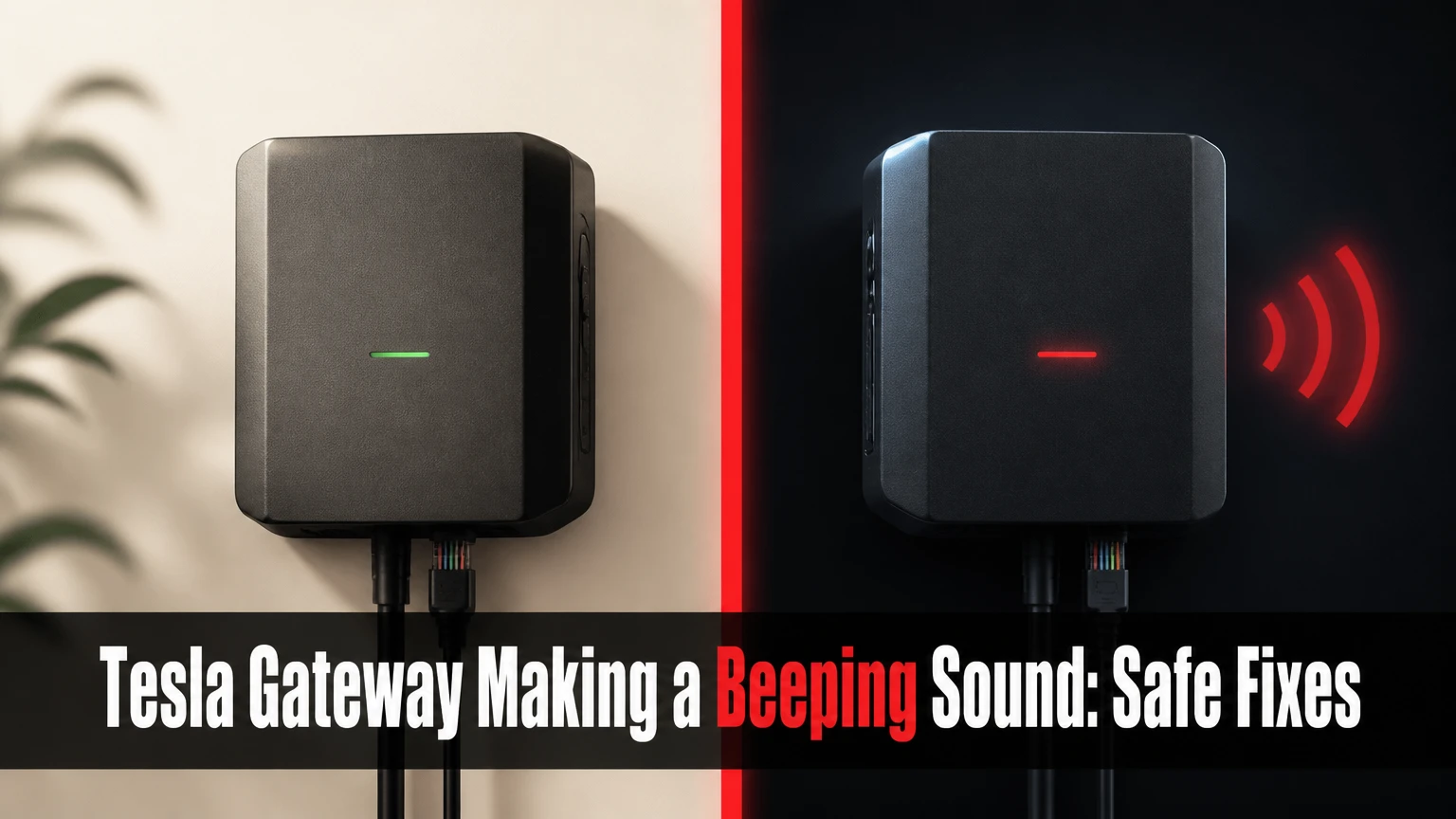
A Tesla Backup Gateway making a beeping sound usually indicates a communication or system-status alert, most often an offline connection to the home network or Tesla services. Powerwall may continue local energy management, but the Tesla app can lose live data, remote control, and reliable status visibility until communication returns.
Key Facts at a Glance
A beeping Tesla Backup Gateway commonly indicates lost communication, but the sound alone does not identify one specific failed component.
Powerwall can continue configured local backup behavior while the Gateway has limited or no cloud communication.
A working home internet connection does not prove that the Gateway has network access.
Do not remove the Gateway deadfront, pull fuses, or switch high-voltage equipment during a blackout unless Tesla or a qualified installer gives model-specific instructions.
Gateway 1, Backup Gateway 2, and Powerwall 3 installations can differ in controls, wiring, and service procedures.
The safest first response is to compare app status, household internet, Gateway indicators, Powerwall indicators, and grid conditions before changing equipment.
What Does a Beeping Tesla Gateway Mean?
A beeping Tesla Gateway generally means that the Gateway has detected an offline, fault, or communication condition. Tesla’s troubleshooting materials direct owners to check system status, internet connectivity, and visible indicators, but the exact meaning depends on the Gateway generation, firmware, installation, and alarm pattern.
The Gateway coordinates the electrical relationship between the utility grid, solar system, Powerwall, and backed-up loads. During normal operation, it monitors grid conditions and controls automatic isolation when a supported system must operate from stored energy. The Gateway also provides the communication path that lets the Tesla app display power flow and system health.
A communication alarm is therefore different from a confirmed battery failure. A Gateway can lose cloud visibility while Powerwall continues operating under its last valid configuration. That distinction matters because an owner may hear a sound, see a gray app screen, and assume the battery is immediately unsafe. The sound is a reason to diagnose the system, not proof of thermal runaway, fire, or battery damage.
What the Beep Cannot Tell You
The beep cannot, by itself, identify whether the fault is Wi-Fi, Ethernet, cellular telemetry, a Tesla service interruption, a firmware problem, a Gateway power issue, or an internal hardware defect. Frequency patterns shared online are useful observations, but they are not a universal Tesla diagnostic code for every installation.
| Observation | More likely explanation | What it proves | Safe next action |
|---|---|---|---|
| App says Gateway Offline | Communication path failure | Cloud data is unavailable | Check internet and indicators |
| Home internet works, Gateway offline | Gateway network path, DHCP, signal, or service issue | Other devices reach the router | Check cable, router, and Tesla status |
| Powerwall LED appears normal | Battery has local power | Battery is not visibly reporting a severe LED fault | Continue non-invasive checks |
| Beep continues during blackout | Loss of grid or communication alert | The system needs attention | Avoid unplanned switching |
| Rapid alarm with red indicator | Possible system or hardware fault | A fault condition may exist | Photograph indicators and contact Tesla |
| App shows live data but occasional chime occurs | Intermittent communication or another alert | Cloud communication is at least partly working | Record timing and open support if repeated |
Can Powerwall Work When the Gateway Is Offline?
Powerwall can continue some local energy-management and backup functions when the Gateway cannot communicate with Tesla’s servers, but app access and remote visibility may be unavailable. Local operation is not a guarantee that every configured feature, software update, or installer-controlled setting will remain available.
The Gateway contains the logic and switching equipment required for the grid-connected and backup relationship. If the utility fails, a properly installed system can isolate backed-up circuits from the grid and supply them from Powerwall, subject to battery charge, load limits, system settings, and local electrical conditions. Tesla describes Powerwall as an integrated energy storage system that can provide backup power when the grid goes down.
Offline operation has practical limits. A homeowner may not be able to confirm current state of charge, change storm or backup settings, review alerts, or verify solar charging from the app. If the battery is already low and solar production is unavailable, waiting several days without communication can leave the owner unable to monitor reserve.
| Function | Gateway online | Gateway offline | Operational implication |
|---|---|---|---|
| Live Tesla app power flow | Normally available | Gray, delayed, or unavailable | Remote visibility is reduced |
| Local backup control | Configured system function | May continue locally | Depends on system health and settings |
| Remote setting changes | Available when supported | Usually unavailable | Changes may wait for reconnection |
| Tesla alert delivery | Available | Delayed or absent | Audible or local indicators matter more |
| Solar charging visibility | Displayed in app | Not reliably visible | Check inverter or production indicators only if safe |
| Firmware and service communication | Available | Interrupted | Persistent offline status needs review |
How Do You Identify the Communication Failure?
Identify the failed communication layer by comparing four observations: Tesla app status, household internet, the Gateway’s visible indicators, and Powerwall indicators. No single observation is conclusive, but the combination narrows the fault without opening electrical equipment.
First, check whether a phone connected to the same home network can load several unrelated websites. Then check whether the Tesla app shows the whole system as offline or only displays stale values. A complete app outage affecting many Tesla users can indicate a service-side problem, while only one installation appearing offline points more strongly toward the local system.
Next, inspect only the external indicators described in your owner documentation. Do not remove covers to find a hidden light or button. Record whether Powerwall shows normal, flashing, or red behavior, and photograph the display without touching wiring or breakers.
Common Failure Modes
| Failure mode | Typical trigger | App symptom | Owner-level response |
|---|---|---|---|
| Internet service outage | ISP outage or modem failure | Gateway offline | Check ISP and reboot router only |
| Wi-Fi loss | Weak signal, changed password, mesh migration | Gateway offline or stale | Restore known network settings |
| Ethernet interruption | Loose cable, failed port, damaged run | Gateway offline | Reseat accessible cable ends |
| DHCP or router change | New router, subnet change, lease conflict | Intermittent offline status | Ask installer or Tesla to review network |
| Cellular limitation | Weak carrier signal or service issue | Offline despite working Wi-Fi devices | Escalate if persistent |
| Tesla service interruption | Cloud platform maintenance or outage | Multiple systems affected | Wait for service restoration, then recheck |
| Gateway hardware issue | Power supply, communications board, or internal fault | Offline with recurring alarm | Open Tesla or installer service request |
| Local power interruption | Tripped supporting breaker or system fault | Offline, possible indicator change | Do not open panels; request qualified help |
An expert diagnostic rule is to separate reachability from function. A Gateway might reach the router but fail to reach Tesla’s cloud service, or the Tesla app might be reachable while the Gateway has lost local communication with Powerwall. Treating every offline message as a Wi-Fi problem leads to unnecessary router changes.
Before You Reset Anything
Before changing the Gateway, confirm that no active grid outage, severe weather event, smoke, water intrusion, burning odor, or abnormal heat is present. Tesla’s owner guidance warns against performing troubleshooting actions during certain outage or hazardous conditions because switching equipment can interrupt backup operation or expose the owner to electrical risk.
Prepare a phone, the Tesla app, a flashlight, the installation address, and the account email. You do not need a multimeter, screwdriver, fuse puller, or panel key for the initial checks.
| Preparation item | Typical quantity | Purpose | Boundary |
|---|---|---|---|
| Smartphone | 1 | App status and photographs | Do not use it to open covers |
| Tesla app | 1 installed copy | System status and support ticket | Record screenshots before changes |
| Flashlight | 1 | Read external indicators | Do not inspect energized interiors |
| Router access | 1 account | Confirm network and restart router | Do not alter advanced settings first |
| Installation documents | 1 set | Identify Gateway model | Use model-specific instructions |
| Observation period | 10-15 minutes | Confirm whether status returns | Avoid repeated resets |
Is the Beeping an Emergency?
A communication beep without smoke, heat, odor, visible damage, or abnormal battery indicators is usually a service or status problem rather than an immediate fire emergency. Leave the area and contact emergency services if you see smoke, flames, arcing, swelling, melting, or hear violent electrical crackling.
Do not spray water on energized equipment. Do not approach equipment that has been damaged by flooding or impact. Tesla’s Powerwall safety documentation directs owners away from opening the product and toward qualified service for internal faults.
How Do You Troubleshoot the Gateway Safely?
Use a non-invasive sequence: verify conditions, check the network, inspect external indicators, allow reconnection time, and escalate with evidence. The initial process usually takes 10-15 minutes, costs nothing, and succeeds only when the underlying issue is a temporary communication interruption.
Step 1: Check Grid and Weather Conditions
Confirm whether the utility is currently supplying the home. Look at ordinary household lighting and the utility’s outage page, but do not infer system health solely from whether a few circuits have power. During a blackout, Powerwall may be intentionally isolated and the app may update slowly or not at all.
Wait until severe weather and active electrical work have ended before attempting nonessential troubleshooting. If backup power is limited, reduce discretionary loads such as electric vehicle charging, resistance heating, pool equipment, and large workshop tools.
Success checkpoint: The utility status, home power condition, and Tesla app state are known.
Common mistake: Resetting equipment during an outage and accidentally interrupting available backup power.
Step 2: Test the Home Network
Connect a phone to the same Wi-Fi network used by the Gateway, if known. Open several websites, then restart the modem and router by following the manufacturer’s normal procedure. A 30-second power removal is a common consumer-router practice, but the router’s own instructions take priority.
If the network name or password changed recently, the Gateway may still be trying to use the old credentials. A mesh system can also move equipment between access points or bands, producing intermittent connectivity. Do not factory-reset the router until you have recorded its current settings.
Success checkpoint: The household network works consistently after the router restarts, but the Gateway status still needs confirmation.
Common mistake: Assuming a functioning phone proves that the Gateway has a valid IP address.
Step 3: Check Accessible Ethernet Connections
For an Ethernet installation, inspect the cable ends that are accessible without removing a cover. Confirm that the plug is seated in the Gateway-side network port and router or switch port. Look for a damaged latch, crushed cable, water exposure, or a switch with no power.
Do not open the Gateway wiring compartment to reach a port. Outdoor or detached-garage cable runs can fail from moisture, ultraviolet exposure, rodents, or a failed network switch.
Success checkpoint: Link lights or router-client information show a connected Gateway, if the equipment provides those indicators.
Common mistake: Replacing a cable while the actual fault is a router subnet or service outage.
Step 4: Wait for Reconnection and Recheck the App
After network service returns, allow approximately 5-15 minutes for the Gateway to boot its communication processes and reconnect. Open the Tesla app again, pull down to refresh, and compare the displayed timestamp with the current time.
A stale screen can survive an underlying recovery. Close and reopen the app rather than repeatedly changing system hardware.
Success checkpoint: The app shows current power flow, battery state, and Gateway status.
Common mistake: Treating one successful app refresh as proof that an intermittent fault is fixed.
When Is a Gateway Reset Appropriate?
A homeowner should reset a Tesla Gateway only when Tesla’s current instructions or a qualified installer specifically authorize the action for that exact model and installation. Public guidance for Backup Gateway 2 is not automatically valid for Gateway 1, Powerwall 3, every country, or every electrical configuration.
Some online instructions describe pressing a reset button for 5-10 seconds and waiting several minutes. That procedure may apply to a particular hardware revision, but an incorrectly identified button or control can interrupt communications or trigger a different function. Tesla’s service documents are model-specific, and Tesla’s troubleshooting page should take precedence over third-party videos and forum posts.
The reset decision should follow the evidence. If the router works, the app remains offline, external indicators show a fault, or the alarm persists beyond a normal reconnection window, submit a support request before pressing a physical control. Include the Gateway model, installation country, alarm duration, app screenshot, LED behavior, and recent electrical or network changes.
Why Full Power Cycles Need Installer Guidance
A full Powerwall and Gateway power cycle is not a universal homeowner procedure. The correct sequence depends on the product generation, solar inverter, backup-load arrangement, jurisdiction, and Tesla’s current owner manual, so a generic sequence copied from a video can create an unsafe or incomplete shutdown.
Owners should not remove the Gateway deadfront, pull system fuses, bypass protective devices, or operate unfamiliar breakers to silence a sound. Tesla’s manuals distinguish owner controls from installer or service procedures, and the manual for the installed product should control.
A qualified technician may isolate solar generation, Powerwall, Gateway controls, and associated breakers in a defined order. The technician also verifies that the system has discharged or reached a safe state before accessing equipment. The often-repeated 60-second waiting period is not a universal safety guarantee.
What If the Alarm Continues After a Reboot?
Persistent beeping after the network and app checks indicates that the issue may not be a simple internet interruption. Tesla or an authorized installer should review the system when the alarm continues for more than 15 minutes after normal network recovery, returns repeatedly, or coincides with an indicator fault.
| Situation | Escalation timing | Information to provide | Likely service focus |
|---|---|---|---|
| App recovers and alarm stops | Monitor for 24 hours | Time and network change | Intermittent connectivity |
| App remains offline for 15 minutes | Same day | Screenshots and router status | Gateway communications |
| Red Powerwall indicator | Promptly | LED photo and load condition | Battery or system fault |
| Smoke, heat, odor, water | Immediately | Location and emergency details | Emergency response |
| Offline after router replacement | Same day | Old and new network details | Network reconfiguration |
| Repeated nighttime alarms | Within 24-48 hours | Times, weather, app state | Signal, power, or firmware review |
Which Connection Method Is Most Reliable?
Hardwired Ethernet is normally the most stable owner-network option when the cable run is professionally installed, while Wi-Fi is simpler for a nearby Gateway and cellular telemetry can provide a fallback path. No option is universally superior because signal strength, routing, environmental exposure, and installer configuration determine the result.
| Connection path | Typical strength | Typical weakness | Best installation context |
|---|---|---|---|
| Wi-Fi, 2.4 GHz or configured band | No dedicated cable; easy local deployment | Distance, interference, password changes | Gateway near a stable home access point |
| Ethernet, Cat5e or Cat6 run | Low radio interference; consistent link | Cable, switch, and weather exposure | Detached garage or long-term fixed installation |
| Cellular telemetry | Independent of home ISP | Carrier coverage and service limits | Backup communications where supported |
| Mesh Wi-Fi | Broad household coverage | Roaming and band-steering complexity | Gateway with a stable reserved node |
A practitioner rule is to avoid optimizing radio settings before confirming the Gateway’s documented network requirements. Separating an IoT device onto a 2.4 GHz network can help some installations, but changing SSIDs, VLANs, firewall rules, or DHCP behavior without Tesla or installer support can make service harder.
Ethernet is not automatically “absolute” stability. A corroded outdoor connector, unpowered switch, or incorrectly terminated cable can fail more completely than a strong Wi-Fi connection. The best connection is the one the installer can document, test, and support.
What Changes During a Grid Outage?
During a grid outage, the priority is preserving safe backup operation, not silencing the Gateway immediately. The Gateway may be switching the home into islanded operation, while the Tesla app loses communication because the router, modem, Gateway, or cellular path is unavailable.
Keep essential circuits below the Powerwall system’s configured output and avoid restarting large loads repeatedly. Solar production may be curtailed temporarily during an outage and may resume only when system conditions permit. Do not assume bright sunlight guarantees charging.
| Outage condition | Likely system behavior | Owner action | Do not do |
|---|---|---|---|
| Grid absent, Powerwall charged | Backup loads remain powered | Reduce nonessential loads | Do not connect a generator casually |
| Grid absent, battery declining | Backup duration shortens | Turn off heavy loads | Do not open panels |
| Router off, Gateway powered | App may go offline | Restore router if safe | Do not reset battery hardware |
| Solar curtailed | Production may show zero | Wait and monitor safe indicators | Do not bypass inverter controls |
| Grid returns | System synchronizes | Allow automatic transition | Do not flip random breakers |
How Much Can Troubleshooting or Repair Cost?
Basic checks cost $0, while an out-of-warranty diagnostic visit commonly costs about $150-$300 as a typical industry range, before parts or complex electrical work. Tesla’s warranty decision depends on product, date, region, installation terms, cause of failure, and evidence of damage, so owners should request eligibility review rather than assume a charge.
Tesla’s published Powerwall warranty terms generally describe a 10-year limited warranty for covered Powerwall equipment, with conditions and regional variations that matter. The Backup Gateway may be covered as part of the installed energy system or related warranty documentation, but the owner should verify the exact warranty certificate and serial number.
| Service scenario | Typical owner cost | Typical duration | Cost uncertainty |
|---|---|---|---|
| Router restart and app checks | $0 | 10-15 minutes | None beyond internet service |
| Network cable replacement | $10-$50 | 15-60 minutes | Cable route and weather rating |
| Installer diagnostic visit | $150-$300 | 1-3 hours | Region, travel, warranty |
| Network reconfiguration | $100-$300 | 1-2 hours | Router and access complexity |
| Gateway hardware replacement | Warranty-dependent | Several days to weeks | Parts, labor, eligibility |
| Electrical repair or panel work | $300-$1,500+ | 2-8 hours | Code requirements and scope |
These figures are typical planning ranges, not Tesla quotes. A service ticket with clear photos and timestamps can reduce unnecessary diagnostic time.
Which Powerwall Situations Need Escalation?
Escalate a beeping Gateway when the alarm persists, the app remains offline, the Powerwall shows a red or abnormal indicator, the system cannot sustain expected backup, or the equipment has suffered water, impact, heat, or electrical damage. A temporary internet interruption is the lowest-risk explanation, but repeated alarms require a documented diagnosis.
Contact Tesla through the app or an authorized installer with:
- Gateway and Powerwall model names.
- Serial numbers if safely visible on exterior labels.
- Installation country and approximate installation date.
- The time the beeping began and whether it repeats.
- App screenshots showing offline or stale data.
- Photos of external indicators.
- Router, ISP, storm, outage, or electrical work changes.
- Current battery percentage if the app still displays it.
Do not diagnose a battery from sound alone. Powerwall thermal or electrical events require attention to heat, odor, smoke, visible damage, and official safety instructions, not an internet-generated beep-frequency chart.
What Information Should You Record?
Record the alarm pattern without standing near hazardous equipment, including whether it is continuous, intermittent, or linked to an app event. Note the interval with a phone timer, but treat the interval as evidence for support rather than a definitive error code.
| Record | Example value | Why Tesla needs it | Collection method |
|---|---|---|---|
| Start time | 21:40 local time | Correlates service and outage events | Phone note |
| Interval | Every 45 seconds | Separates intermittent behavior | Timer observation |
| App state | Gateway Offline | Identifies cloud visibility | Screenshot |
| Battery state | 38% at last update | Assesses reserve risk | App record |
| LED state | Flashing white or red | Supports fault triage | Exterior photograph |
| Recent change | New mesh router yesterday | Identifies likely trigger | Owner history |
Common Mistakes That Make the Problem Worse
The most damaging troubleshooting mistake is changing several variables at once. Replacing the router, changing the Wi-Fi name, pressing a Gateway control, and switching breakers prevents anyone from knowing which action caused recovery or created a new fault.
Another mistake is assuming that silence means resolution. A buzzer can stop because the Gateway lost power, not because communication returned. Always confirm current app data, external indicators, and expected backup behavior after an alarm stops.
A third mistake is relying on a third-party reset video. Videos often omit regional wiring differences, model identification, and the distinction between owner controls and service controls. Tesla manuals and current support instructions have priority over generic sequences.
Owners also sometimes disable cellular or firewall protections to make a device appear online. That can create security and service problems. Network changes should preserve the documented connection method and permit the communication services required by Tesla’s installation.
FAQ
Will a Tesla Gateway Beep if Wi-Fi Is Down?
A Tesla Gateway may beep when it loses its configured communication path, including Wi-Fi, but the sound is not proof that Wi-Fi alone caused the alert. A Gateway using Ethernet or cellular may remain reachable through another path, while a router, ISP, or Tesla service interruption can create similar app symptoms.
Why Is My Tesla Gateway Beeping at Night?
Nighttime beeping can reflect a weak or intermittent network connection, router maintenance, power-quality events, or a Gateway alert that became noticeable when the home was quiet. Record the exact interval, app status, weather, and Powerwall indicators before changing settings. Repeated nighttime alarms deserve Tesla or installer review.
Can a Router Restart Damage Powerwall?
A normal modem or router restart should not damage Powerwall because it changes household networking rather than battery power. The Tesla Gateway may remain offline for several minutes afterward. Do not combine a router restart with a battery shutdown or breaker operation unless model-specific Tesla instructions authorize the complete procedure.
Does Cellular Backup Always Keep the Tesla App Online?
Cellular telemetry does not always keep the Tesla app online. Availability depends on Gateway hardware, installation configuration, carrier coverage, account provisioning, and Tesla service availability. Cellular may preserve a fallback communication path, but it is not a guaranteed replacement for a correctly configured local network.
How Long Can Powerwall Operate Without Internet?
Powerwall can provide configured local functions without internet for a period determined by battery charge, household load, solar conditions, and system health. Internet loss mainly removes monitoring and remote control. Because owners cannot reliably observe reserve or alerts offline, persistent disconnection should be reported before the battery becomes depleted.
Should I Turn Off Powerwall to Stop the Beep?
Do not turn off Powerwall solely to stop a Gateway beep. Switching the battery can interrupt backup availability and may not correct a network or cloud communication fault. Check the Tesla app, router, external indicators, and outage status first, then follow Tesla’s model-specific instructions or contact a qualified installer.
The Bottom Line
A Tesla Gateway making a beeping sound most often indicates a communication or system-status alert, not an automatic battery emergency. Check grid conditions, household internet, accessible Ethernet connections, app timestamps, and external indicators first. Avoid deadfront covers, fuses, random breaker sequences, and generic reset instructions.
If the alarm persists for more than 15 minutes after network recovery, returns repeatedly, appears with abnormal Powerwall indicators, or occurs alongside heat, smoke, odor, water, or physical damage, contact Tesla or an authorized installer. The safest diagnosis combines the exact Gateway model, app state, LED behavior, alarm timing, and recent network or electrical changes.