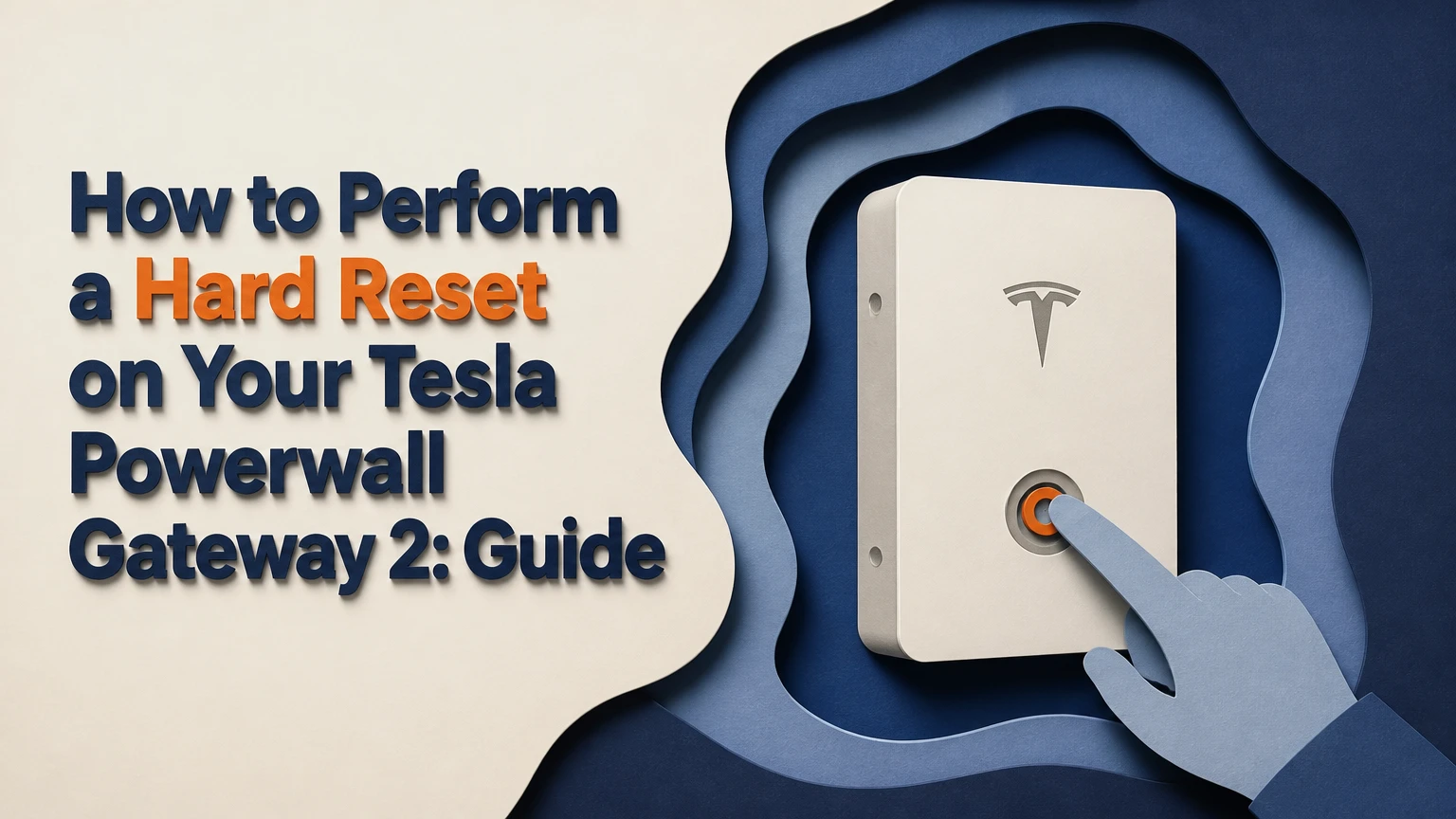
To perform a hard reset on a Tesla Powerwall Gateway 2, first use the Gateway’s user-accessible reboot control only if your installation manual identifies one. If that does not restore communication, an authorized installer or qualified electrician can perform a controlled AC and battery shutdown, wait at least one minute, then restart the system in the documented order. A factory reset is different and should remain installer-only.
Key Facts at a Glance
- A Gateway 2 reboot normally restarts control and communications electronics without deleting operating configuration.
- A full Powerwall system shutdown can interrupt household power, solar production, battery charging, and backup protection.
- Tesla installations differ by region, switchgear, solar equipment, and commissioning design; labels on your site control the procedure.
- Never remove the Gateway deadfront, pull a fuse, probe terminals, or operate exposed wiring.
- Gateway recovery commonly takes 2-10 minutes, while Tesla App charts can take longer to repopulate.
- A factory reset can remove commissioning data, meter assignments, grid settings, and other installer configuration.
What Does the Tesla Backup Gateway 2 Do?
The Tesla Backup Gateway 2 monitors the home’s electrical flow and coordinates Powerwall batteries, utility supply, solar generation, and backup isolation. During a grid outage, the Gateway opens the utility connection so the Powerwall system can energize the backed-up loads without energizing utility lines.
The Gateway also communicates with Tesla cloud services and local commissioning equipment. Consequently, an app connection problem does not automatically mean that the batteries or transfer equipment have failed. A household can retain backup operation while monitoring is unavailable, or lose power because of a deeper electrical fault.
Tesla’s Backup Gateway 2 Installation Manual places installation and service within qualified-personnel boundaries. Tesla’s wording is direct: “Only qualified personnel should install, service, and maintain the Gateway.” That instruction matters because the outer enclosure may be user-accessible while the protected interior contains hazardous conductors.
What Does a Gateway Reset Actually Change?
A reboot interrupts the Gateway’s control electronics and reloads its operating software. A power cycle removes operating power from multiple connected components, so it can clear a stalled communication path that a button reboot does not reach.
Neither procedure is a substitute for repairing a failed breaker, inverter, battery, network connection, or utility feed. A reset also cannot correct an incorrectly commissioned system, damaged equipment, or a sustained grid outage.
| Reset action | Typical purpose | Configuration impact | Typical recovery |
|---|---|---|---|
| Gateway reboot | Frozen app connection or local controller | Normally preserved | 2-10 minutes |
| Network restart | Router, DHCP, or Wi-Fi fault | Tesla settings preserved | 2-15 minutes |
| System power cycle | Multi-device communication lockup | Normally preserved | 5-20 minutes |
| Factory reset | Recommissioning or installer repair | May delete site data | 15-60 minutes |
The time ranges are typical field expectations, not guaranteed Tesla service-level times. Firmware updates, cellular coverage, inverter startup logic, and the number of Powerwalls can extend recovery.
Which Reset Should You Use?
Use the least disruptive action that matches the symptom. A missing Tesla App connection with normal household power usually calls for an app, router, or Gateway communication check, whereas a system that will not start after an installation or service event requires qualified diagnosis before any power operation.
| Symptom | First action | Do not do first | Escalation trigger |
|---|---|---|---|
| App offline, home powered | Restart app and router | Shut down all battery equipment | Still offline after 15-30 minutes |
| Gateway status unavailable | Use documented Gateway reboot | Remove deadfront | No LED or repeated fault |
| House without power | Check utility and breaker status visually | Repeatedly toggle unknown breakers | Electrical alarm, heat, or outage persists |
| Solar not producing | Check inverter status and daylight conditions | Reset Powerwalls repeatedly | Inverter fault remains |
| Battery fault message | Record exact Tesla App message | Factory-reset system | Fault returns after normal restart |
| TEG local Wi-Fi missing | Re-enable phone Wi-Fi and move nearby | Join an unfamiliar neighboring network | Installer service is required |
A hard reset is most useful for a frozen controller or communication session. It is not a first response to smoke, burning odor, water ingress, unusual heat, physical damage, arcing, or a battery safety alarm. Leave the equipment alone and contact Tesla, the installer, emergency services, or the utility as appropriate.
How to Perform a Hard Reset on Your Tesla Powerwall Gateway 2
A normal Gateway 2 reboot takes about 5 minutes and usually keeps the home energized; a complete system power cycle commonly takes 5-20 minutes and may turn backed-up loads off. The factor that determines success is using the procedure documented for your exact installation, because Gateway 2 layouts and connected equipment vary.
Before You Start
| Preparation item | Typical requirement | Why it matters |
|---|---|---|
| Time for Gateway reboot | 10 minutes available | App and local communications may restart at different times |
| Time for full shutdown | 20-30 minutes available | Solar and batteries may need staged startup |
| Tools | 0 tools for support-first checks | Avoid improvised probes or conductive objects |
| Phone | Tesla App installed and updated | Needed to record status before and after |
| Information | Error text, LED state, outage status | Helps support identify the failing subsystem |
| Safety condition | Dry, undamaged equipment | Wet or damaged equipment requires professional service |
Before touching a switch, photograph the visible breaker labels and record the Tesla App’s exact alert. Confirm whether the issue affects power, charging, solar production, or monitoring. Do not begin a full shutdown while medical equipment, security systems, sump pumps, refrigeration, or other sensitive loads depend on backup power unless you have an alternative supply.
Step 1: Check the Non-Power Causes
Restart the Tesla App, confirm the phone has internet access, and restart the home router only if other household devices also lost connectivity. Move near the Gateway and check whether the documented local Tesla Gateway network appears, but do not alter commissioning settings.
Success checkpoint: The app reconnects or the Gateway becomes visible without interrupting household power.
Common mistake: Treating an internet outage as a battery fault. Tesla App cloud monitoring can fail while Powerwall continues operating locally.
Step 2: Inspect the Gateway Without Opening the Deadfront
Open only the exterior access door if your owner documentation permits it. Do not remove the internal plastic or metal deadfront, terminal cover, or any shield that requires tools. Look for the status indicator and compare its behavior with the Tesla manual for your region.
Success checkpoint: The Gateway enclosure is intact, dry, and free of heat, odor, buzzing, or visible damage.
Common mistake: Assuming that every dark LED means the entire energy system is dead. Some status states depend on utility power, battery state, or the specific fault condition.
Step 3: Use the Documented Gateway Reboot Control
If the installed Gateway 2 documentation identifies a recessed reset control, use only the specified nonconductive actuator and follow the manual’s hold time. Do not insert a pencil, pen, wooden stick, or plastic object into an opening unless the opening is specifically identified as the reset control for your unit.
Release the control once the documented interval ends. Do not press it repeatedly. The widely circulated five-second instruction appears in third-party guidance, but the correct duration is the one in the Tesla documentation associated with your hardware and region.
Success checkpoint: The Gateway status indication changes, then returns to a normal state within several minutes.
Common mistake: Confusing a reset aperture with an access opening. If the button location is not unambiguous, stop and contact the installer.
Step 4: Wait for Communications to Recover
Allow at least 5 minutes before judging the reboot, and allow up to 15 minutes for the Tesla App to refresh charts or reconnect through the cloud. Avoid changing Wi-Fi credentials, commissioning settings, or grid profiles during this interval.
Success checkpoint: The Tesla App shows current system status, and the Gateway reports Powerwall and solar devices normally.
Common mistake: Rebooting repeatedly because the app remains stale for the first few minutes. Repeated interruptions can prolong diagnosis and obscure the original fault.
Step 5: Escalate Before a Full Power Cycle
If the Gateway remains offline, record the LED pattern, Tesla App alert, utility status, Powerwall switch positions, and inverter display. Send those details to Tesla Support or the authorized installer and ask whether the exact site permits a customer-operated shutdown.
A full system power cycle is not a universal homeowner procedure. The Gateway controls transfer and isolation functions, and connected solar inverters can have separate shutdown requirements.
Success checkpoint: A qualified person confirms the breaker sequence and identifies which loads will lose power.
Common mistake: Copying a sequence from a different home. A Powerwall-only system, a solar-plus-Powerwall system, and a system with backup subpanels may have different labels and equipment.
Step 6: Have a Qualified Person Perform the Sequential Shutdown
When the site-specific manual or installer authorizes a complete shutdown, the qualified person should identify the solar inverter disconnect, Powerwall switches, Powerwall breakers, and Gateway supply using the installation labels. The exact order must come from the applicable Tesla manual and local electrical design.
A common documented concept is to stop solar production, switch Powerwall units off, open associated battery breakers, and then open the Gateway supply. The procedure is installation-dependent, so this article does not replace the manual or a service instruction.
Success checkpoint: The intended system components are de-energized, the house status is understood, and no alarm or abnormal sound occurs.
Common mistake: Pulling an inline fuse or opening the enclosure to reach live parts. Mechanical disconnects and labeled breakers are the only appropriate user-visible controls.
Step 7: Observe the Required Dead Time
Keep the system isolated for the interval specified by the service instruction, commonly at least 60 seconds and sometimes several minutes. Do not assume that a dark screen proves every circuit is safe; stored energy and utility conductors remain serious hazards inside electrical equipment.
Success checkpoint: The qualified person confirms the waiting period and the restart sequence before restoring power.
Common mistake: Restoring power immediately after shutdown. A short pause may fail to clear the communication state that prompted the power cycle.
Step 8: Restore Power in the Documented Reverse Sequence
Restore the Gateway, Powerwall breakers and switches, and solar equipment only in the sequence specified for the installation. A commonly used concept is Gateway supply first, battery circuits and Powerwall switches next, and solar inverter supply after the battery system is available, but site documentation controls.
Success checkpoint: Gateway, Powerwall, and inverter indicators move through startup and settle into normal states.
Common mistake: Turning solar on before the battery and Gateway are ready. An inverter may remain faulted or delay reconnection when its control partner is unavailable.
Step 9: Verify the System in Three Places
Check the Tesla App, the Gateway indicator, and the inverter or solar monitoring interface. Confirm that the home has power, Powerwall state of charge is visible, solar production is plausible for the time of day, and no new alert has appeared.
Success checkpoint: The system reports consistent status across local equipment and the app.
Common mistake: Testing solar output at night or during heavy cloud cover and interpreting zero production as a reset failure.
What Is the Difference Between a Reboot, Power Cycle, and Factory Reset?
A reboot restarts Gateway software, a power cycle removes operating power from multiple devices, and a factory reset changes or deletes commissioning data. The first two are troubleshooting actions; the third is a configuration procedure for authorized service personnel.
| Method | User data | Grid profile | CT and meter mapping | Recommended operator |
|---|---|---|---|---|
| Gateway reboot | Normally retained | Retained | Retained | Owner only when documented |
| Full power cycle | Normally retained | Retained | Retained | Qualified person or installer |
| App and router restart | Retained | Retained | Retained | Owner |
| Factory reset | May be removed | May be removed | May be removed | Tesla or authorized installer |
Current-transformer orientation, Neurio or site meter assignments, utility settings, and commissioning values are not casual troubleshooting data. An installer may need to revalidate them after a factory reset, and incorrect settings can produce inaccurate energy flows or improper backup behavior.
Is a Factory Reset a Hard Reset?
A factory reset is not the same as a hard reboot. Factory reset returns configuration or commissioning data toward an uncommissioned state, while a reboot restarts the controller without intentionally erasing site settings.
Do not select an advanced factory-reset function because the Tesla App is offline or charts are blank. Factory reset is appropriate only when Tesla or the commissioning professional directs it for a documented reconfiguration, ownership transfer, or recoverable configuration problem.
What Should Happen After the Reset?
A successful Gateway 2 restart normally restores local control first and cloud monitoring second. The house may recover before the Tesla App displays current charts because the Gateway must reconnect to the network, authenticate with Tesla services, and repopulate telemetry.
| Observation after restart | Typical interpretation | Wait or act | Next step |
|---|---|---|---|
| Home powered, app reconnecting | Cloud session rebuilding | Wait 5-15 minutes | Recheck app |
| Powerwall visible, solar absent | Inverter startup delay or fault | Wait up to 15 minutes | Check inverter |
| No Gateway LED | Supply, fuse, or hardware issue | Do not repeat reset | Call installer |
| TEG network absent | Local Wi-Fi disabled or controller fault | Recheck phone nearby | Service diagnosis |
| Red or abnormal status | Active equipment fault | Record pattern | Follow Tesla manual |
| Charts remain blank | Cloud, router, or telemetry issue | Check internet | Escalate after 15-30 minutes |
The Tesla App is not the only evidence source. A stale chart does not prove that the Powerwall is not charging, and a green app status does not prove that every backed-up circuit is available. Use the local equipment indicators and actual household behavior together.
Why Is the Gateway Still Offline After Resetting?
A Gateway that remains offline after a reboot usually has a network, supply, firmware, device-communication, or hardware problem rather than a need for more button presses. Restart the phone and router, confirm other devices have internet access, and wait 15-30 minutes before requesting service.
Check whether the Tesla App shows a system alert rather than simply “offline.” Record whether Powerwall charge percentage, solar production, and backup status are all missing or only cloud connectivity. That distinction helps Tesla Support separate a telemetry problem from a power-conversion fault.
What If the TEG Wi-Fi Network Does Not Appear?
The local Gateway Wi-Fi network may be unavailable because the Gateway is still booting, the phone is holding an old connection, or local access is disabled by the installation state. Toggle phone Wi-Fi, move close to the Gateway, and follow the Tesla troubleshooting manual for the local access method. Do not connect to an unknown neighboring network or change advanced settings without installer guidance.
What If the House Has Lost Power?
A total outage requires outage diagnosis, not automatic resetting. Confirm whether the utility is down, whether essential circuits are backed up, and whether a visible breaker has tripped, but do not repeatedly operate unidentified breakers or open the Gateway.
If the Tesla App reports a battery, isolation, or Gateway fault, contact Tesla or the installer. If there is smoke, heat, odor, water, arcing, or physical damage, move away from the equipment and use emergency and utility procedures instead of troubleshooting.
How Long Does a Tesla Gateway Reset Take?
A Gateway-only reboot typically requires 2-10 minutes, while a complete shutdown and restart commonly takes 5-20 minutes before the equipment is operational. Tesla App data can take 15-30 minutes to become complete because cloud telemetry and inverter reporting may recover after local control.
| Stage | Typical duration | What the user may see |
|---|---|---|
| Button reboot | 5-10 minutes | LED transition and temporary app disconnect |
| Full isolation wait | 1-5 minutes | No normal system telemetry |
| Gateway startup | 1-5 minutes | Gateway becomes responsive |
| Powerwall startup | 2-10 minutes | Battery status returns |
| Solar inverter reconnection | 5-15 minutes | Production resumes in daylight |
| Cloud chart recovery | 5-30 minutes | Historical or live data repopulates |
These are typical operational ranges, not guarantees. A firmware update, weak network, low battery state of charge, grid event, or inverter anti-islanding timer can extend the process.
How Much Does Professional Reset Service Cost?
A routine in-warranty support intervention may cost nothing, while a typical out-of-warranty electrician or solar service visit may range from $150-$350 before parts. The final amount depends on travel, diagnostics, local labor rates, equipment warranty, and whether recommissioning is required.
| Service situation | Typical labor range | Parts likely included | Usual duration |
|---|---|---|---|
| Remote Tesla diagnosis | $0 | None | 15-60 minutes |
| Installer diagnostic visit | $150-$350 | Usually no major parts | 1-2 hours |
| Gateway replacement assessment | $250-$600 labor | Gateway may be separate | 2-4 hours |
| Recommissioning after factory reset | $300-$800 | Configuration service | 2-5 hours |
| Electrical fault repair | $150-$500 plus parts | Breaker or wiring varies | 1-4 hours |
These figures are typical service-market estimates, not Tesla quotations. Ask whether the visit is covered by the installation or product warranty before authorizing paid work.
Common Reset Mistakes and Their Fixes
| Mistake | Immediate risk or consequence | Correct response | Escalate when |
|---|---|---|---|
| Removing the deadfront | Shock or arc-flash exposure | Refit nothing and close the enclosure if safe | Any contact, damage, or alarm |
| Pulling a fuse | Arc and equipment damage | Use labeled disconnects only | Fuse or holder is hot |
| Using metal on a button | Short circuit or shock | Stop using the opening | Button location is uncertain |
| Repeated reset presses | Longer diagnosis and interrupted boot | Wait through one complete cycle | System remains offline |
| Resetting during critical backup use | Loads can lose power | Arrange alternate power first | Medical or safety loads depend on battery |
| Factory-resetting casually | Lost commissioning data | Stop and contact installer | Settings were already erased |
One counterintuitive field rule is that a blank app is often less urgent than an abnormal local indicator. Cloud monitoring can fail independently, whereas heat, odor, repeated clicking, or a persistent battery fault can indicate an electrical or thermal issue.
A second rule is to photograph labels before operating anything. Gateway and Powerwall breaker names differ between homes, and copying a sequence from an online video can isolate the wrong equipment or leave solar energized.
A third rule is to stop after one documented reboot. More resets rarely repair a failed breaker, defective network path, damaged inverter, or incorrect CT configuration.
When Should You Contact Tesla or Your Installer?
Contact Tesla Support or the authorized installer when a documented reboot fails, the Gateway has no normal status indication, the Tesla App shows a persistent equipment fault, or the system cannot restore backup operation. Provide the site address, Gateway and Powerwall count, exact alert text, LED behavior, outage status, and the time of the reset.
Tesla Energy Library manuals provide installation and troubleshooting instructions, but local electrical code and the equipment’s regional manual take precedence over generalized online sequences. Tesla’s owner documentation also directs users away from opening service areas and toward qualified service personnel for electrical work.
FAQ
Will a Gateway 2 reset erase my Tesla App history?
A normal Gateway reboot or controlled power cycle normally does not erase Tesla App account history or commissioned grid settings. Temporary gaps can appear while telemetry reconnects, and a factory reset is different because it may remove local commissioning data that the installer must restore.
Can I reset the Powerwall while the grid is out?
Do not begin a full Powerwall or Gateway shutdown during an outage unless Tesla or your installer provides the site-specific instruction. The system may be intentionally isolating the home, and a shutdown can remove backup power until the utility returns or qualified personnel complete the restart.
Should solar be turned off before a full reset?
Solar equipment generally must be placed into its documented shutdown state before a complete system power cycle. The correct disconnect and order depend on the inverter and installation design, so use the labeled procedure from the installer or Tesla manual rather than a generic internet sequence.
Why does the Tesla App show old power data after rebooting?
Old or incomplete data usually means the Gateway has restarted locally but has not finished network, cloud, or inverter communication. Wait 15-30 minutes, verify household internet, and check local indicators before repeating any reset.
Can a homeowner perform the full AC and DC shutdown?
A homeowner should operate only controls explicitly identified as user-operable in the applicable Tesla documentation. Gateway covers, deadfronts, battery wiring, fuses, and commissioning settings require qualified service, especially where the procedure affects utility isolation or solar equipment.
What is the safest alternative to a hard reset?
The safest first alternative is to restart the Tesla App, verify the home internet connection, record the Gateway status, and contact support with the exact alert. That path preserves backup availability while distinguishing a cloud-monitoring fault from an electrical system fault.
The Bottom Line
The safest way to perform a hard reset on your Tesla Powerwall Gateway 2 is to start with a documented Gateway reboot, wait for local and cloud recovery, and escalate before attempting a complete AC and battery shutdown. A full power cycle can clear a multi-device communication lockup, but qualified personnel should control it. Never use a factory reset for an ordinary app or Wi-Fi problem, and never open the protected electrical compartment.