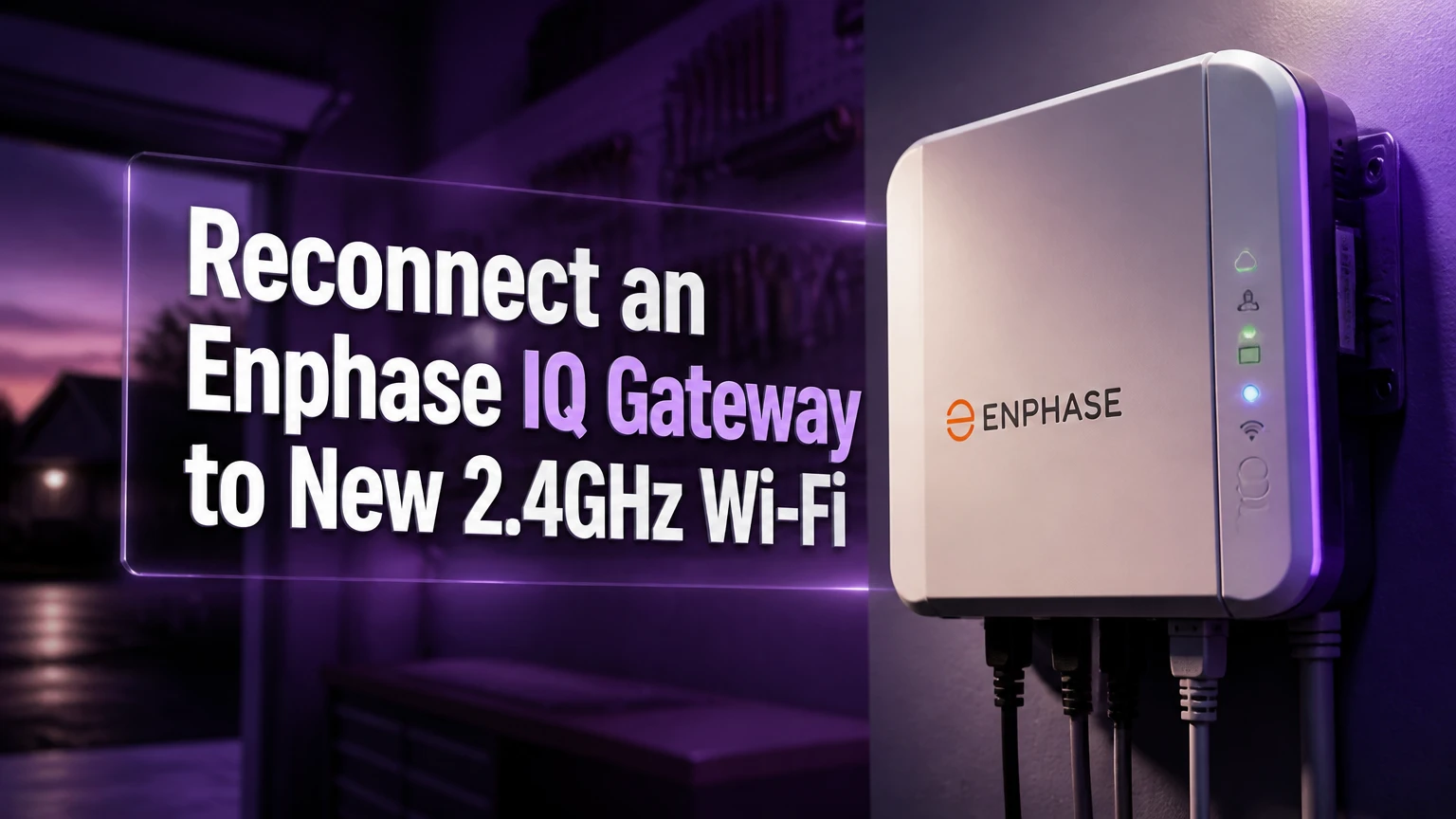
To reconnect an Enphase IQ Gateway to a new 2.4GHz Wi-Fi network, place the Gateway in AP Mode, join its temporary ENVOY network from a phone, and submit the new router credentials through the Enphase App. The procedure usually takes 15-30 minutes, and the solar array can continue producing while monitoring is offline.
Key facts at a glance
The Enphase IQ Gateway sends microinverter performance data to the Enphase Enlighten platform.
A changed Wi-Fi name or password usually affects monitoring communication, not local solar production.
The Gateway’s temporary access point commonly appears as
ENVOY_XXXXXX.A dedicated 2.4GHz SSID with WPA2 security is the safest compatibility choice.
A short AP Mode button press is different from a factory reset or long button hold.
Cloud reporting commonly returns within 5-15 minutes after valid credentials are accepted.
What does the Enphase IQ Gateway do?
The Enphase IQ Gateway is the communications bridge between Enphase microinverters and Enlighten. It collects system information locally, then forwards production data through the home network to Enphase servers. Enphase documentation describes the Envoy, the Gateway’s predecessor, as a “communications gateway” between the photovoltaic system and the monitoring platform.
The Gateway does not normally control the basic conversion of sunlight into household electricity. IQ Microinverters perform that conversion at the modules. Therefore, a router replacement can create a monitoring outage without stopping generation, provided the electrical system has no separate fault.
A “Not Reporting” message means Enlighten has not received recent data from the site. It does not prove that every microinverter is offline. Check the inverter or system status before assuming a production failure.
Where is the Gateway located?
An Enphase IQ Gateway is commonly installed beside the main electrical panel, inside an IQ Combiner, or in another equipment area with access to power and communications wiring. The exact enclosure depends on the installer and Gateway model.
Do not remove dead fronts, open energized panels, or handle line-voltage conductors to reach the device. Wi-Fi reconnection requires the user interface and buttons only. An electrician or qualified solar technician should handle inaccessible or energized equipment.
What should you check before reconnecting?
Before reconnecting an Enphase IQ Gateway, confirm that the router broadcasts a reachable 2.4GHz network, the Wi-Fi password is available, and the Gateway has power. Reserve 20-30 minutes, keep a phone nearby, and avoid changing router settings during the pairing process.
Before-you-start checklist
| Requirement | Specific target | Why it matters |
|---|---|---|
| Phone battery | At least 30% charge | Prevents interruption during AP setup |
| Gateway power | Powered continuously for 5 minutes | Allows LEDs and access point to initialize |
| Wi-Fi band | 2.4GHz, 802.11 b/g/n compatible | Matches common Gateway radio support |
| Router security | WPA2-Personal or WPA2/WPA3 mixed mode | Avoids many legacy authentication failures |
| Wi-Fi password | Exact case-sensitive text | Prevents rejected credentials |
| Working time | 15-30 minutes | Covers setup, restart, and verification |
Use a normal home SSID rather than a guest network. Guest networks often block local-device communication or isolate clients, which can interfere with setup and future Gateway access.
If the router uses one name for 2.4GHz and 5GHz, temporarily disable band steering or create a separate 2.4GHz name. A separate SSID removes ambiguity during setup. The phone must reach the Gateway’s temporary network first, then the Gateway must reach the home router.
How do you reconnect an Enphase IQ Gateway to a new 2.4GHz Wi-Fi network?
The Enphase App method is the preferred homeowner procedure: activate AP Mode, join the Gateway’s temporary Wi-Fi network, select the new 2.4GHz SSID, enter its password, and wait for cloud reporting. A short button press, correct phone network selection, and WPA2-compatible router settings determine success.
Step 1: Locate and identify the Gateway
Find the Enphase IQ Gateway or IQ Combiner containing the Gateway. Confirm that the unit has power and record its serial number from the label if it is visible without opening equipment.
The serial number helps identify the temporary network name and the correct site in Enlighten. Photograph the label only if the image does not expose information publicly.
You will know this step worked when: the Gateway’s status lights are illuminated or the unit’s display, if fitted, responds normally.
Common mistake: searching for the router’s network before activating the Gateway access point.
Step 2: Briefly press the AP Mode button
Press and release the AP Mode button, usually marked with a phone or wireless symbol. Do not hold the button unless the model-specific instructions explicitly require it, because button functions differ between Gateway generations.
The AP Mode indicator should show an active state, commonly a solid or illuminated green light. Enphase notes that LED behavior can vary by model and operating condition, so use the model label and installation guide if the indicator does not match.
You will know this step worked when: a temporary Gateway Wi-Fi network becomes visible on the phone within approximately 30-90 seconds.
Common mistake: holding the button long enough to invoke a different function or assuming a brief LED change means the home router is already configured.
Step 3: Disable mobile data temporarily
Turn off cellular data on the phone before joining the Gateway network. Android and iPhone devices may decide that the temporary Gateway network has no internet access and automatically switch back to mobile data or another saved Wi-Fi network.
Keep Bluetooth enabled if the Enphase App requests it, but do not enable a VPN during setup. VPN routing, private DNS, and automatic network switching can prevent the app from reaching the local Gateway address.
You will know this step worked when: the phone remains connected to the Gateway network even though the phone reports “No Internet.”
Common mistake: testing internet access and abandoning the temporary network because it does not provide web access. The temporary network is for local configuration.
Step 4: Join the Gateway’s temporary Wi-Fi network
Open the phone’s Wi-Fi settings and select the network named ENVOY_XXXXXX, where the final characters identify the Gateway. The exact name can vary by model, so compare the visible network with the Gateway serial number and avoid selecting an unrelated access point.
Remain within normal Wi-Fi range of the equipment. Do not connect the phone to the new home network at this stage.
You will know this step worked when: the phone shows the Gateway SSID as connected, even if it displays a no-internet warning.
Common mistake: allowing the phone to return to the home router because the Gateway network appears weak. Move closer to the Gateway instead.
Step 5: Configure the new home network in the Enphase App
Open the Enphase App and choose the Gateway configuration path. Depending on app version and permissions, the labels may appear as Menu > System > Devices > Gateway > Configure Wi-Fi, or under a commissioning or device-connection screen.
Select the scan option, choose the new 2.4GHz SSID, enter the password exactly, and submit the configuration. Hidden SSIDs may require manual entry, but visible broadcasting is more reliable for first-time recovery.
You will know this step worked when: the app confirms that credentials were sent and the Gateway leaves its temporary access point.
Common mistake: typing the router administrator password instead of the Wi-Fi password, or copying a trailing space from a password manager.
Step 6: Reconnect the phone to normal internet
After the Gateway accepts the credentials, restore mobile data or reconnect the phone to the home Wi-Fi. The temporary ENVOY_XXXXXX network may disappear because the Gateway is restarting its network interface.
Do not repeatedly press the AP Mode button while the Gateway is applying settings. A second setup attempt can interrupt a valid connection.
You will know this step worked when: the phone reaches the internet normally and the Enphase App can load the site without the temporary Gateway connection.
Common mistake: interpreting the disappearance of ENVOY_XXXXXX as failure. The access point often closes after configuration.
Step 7: Verify local and cloud communication
Allow 5-15 minutes for the Gateway to associate with the router and contact Enlighten. Check the Gateway’s communication indicators and refresh the Enphase App. Current reporting may return before historical data finishes synchronizing.
You will know this step worked when: the cloud or communication indicator reaches its normal connected state and Enlighten shows a recent update time.
Common mistake: power-cycling the Gateway after only one minute. Repeated restarts delay association and cloud registration.
Which router settings work best with an IQ Gateway?
A separate 2.4GHz SSID using WPA2-Personal is the most predictable configuration for an Enphase IQ Gateway. WPA3-only networks, guest isolation, hidden SSIDs, aggressive band steering, and incompatible channels can prevent association even when the password is correct.
| Router setting | Recommended value | Riskier value | Practical consequence |
|---|---|---|---|
| Frequency | Dedicated 2.4GHz SSID | 5GHz-only SSID | Gateway cannot see or join 5GHz-only service |
| Security | WPA2-Personal AES | WPA3-only | Older Gateway firmware may reject authentication |
| Channel mode | Auto or 1, 6, or 11 | Crowded fixed channel above 11 | Regional channel support can vary |
| Network type | Main LAN with internet access | Guest or isolated IoT VLAN | Local discovery or cloud traffic may fail |
| SSID visibility | Broadcast name | Hidden SSID | Manual entry can be less reliable |
| Band steering | Disabled during setup | Forced dual-band steering | Phone or Gateway may attach to the wrong band |
Enphase recommends checking the Gateway model and firmware because wireless capabilities are not identical across Envoy, Envoy-S, IQ Gateway, and IQ Gateway Metered hardware. A router that works for a new laptop can still reject an older embedded device.
Does the Gateway support 5GHz?
Many Enphase Gateway installations require 2.4GHz Wi-Fi, so a 5GHz-only network is unsuitable. A combined SSID can work when the router correctly permits 2.4GHz association, but a dedicated 2.4GHz SSID is the cleaner diagnostic test.
Do not judge compatibility from the phone’s frequency. The phone may use 5GHz after setup while the Gateway remains on 2.4GHz.
Can you reconnect without the Enphase App?
You can often reconnect an Enphase Gateway through a browser by joining its temporary access point and opening the local configuration address, commonly 172.30.1.1. The browser method is useful when the app cannot authenticate, the phone is unsupported, or the site owner lacks app access.
Manual browser method
- Activate AP Mode with a brief press.
- Disable cellular data and VPN services.
- Join
ENVOY_XXXXXX. - Open a browser and enter
http://172.30.1.1. - Select the Wi-Fi configuration or network settings page.
- Scan for the 2.4GHz SSID and submit the password.
- Reconnect the phone to ordinary internet and verify Enlighten.
The local address is available only while the phone is connected to the Gateway access point. A browser may display a privacy warning because the local device does not use a public web certificate. Proceed only to the Gateway’s local address, not to a similarly named internet site.
Expert insight: the browser method is not a factory-reset method. It changes network credentials, while a reset can erase configuration or require installer commissioning. Never reset the Gateway merely because the app cannot find it.
Can WPS reconnect the Gateway?
WPS can reconnect a compatible Enphase Gateway when the router is nearby and WPS is enabled, but app or browser setup is more dependable. WPS transfers credentials without typing the password, yet many newer routers disable WPS or restrict it under WPA3-only security.
| Method | Typical duration | Required condition | Main limitation |
|---|---|---|---|
| Enphase App | 15-30 minutes | Smartphone and AP Mode | App permissions and network switching |
| Browser setup | 15-30 minutes | Local address access | Requires temporary AP connection |
| WPS | About 5-10 minutes | Router WPS button or PIN | Unavailable on many modern routers |
| Ethernet | 20-60 minutes | Cable from router to Gateway | Requires physical cable routing |
To try WPS, place the Gateway within reliable router range, activate the Gateway’s WPS or wireless pairing function according to its model instructions, then press the router’s WPS control within the allowed pairing window. Confirm the cloud status afterward.
WPS is a poor choice for a distant garage Gateway or a router with client isolation. It also provides little diagnostic information when pairing fails.
Is Ethernet better than Wi-Fi for the Gateway?
Ethernet is usually the most stable long-term connection when a cable can reach the Gateway. Ethernet removes radio interference, band steering, password changes, and most wireless security compatibility problems, although it does not repair a failed Gateway, router, switch, or internet service.
| Connection option | Typical hardware cost | Setup time | Best fit | Limitation |
|---|---|---|---|---|
| 2.4GHz Wi-Fi | $0 using existing router | 15-30 minutes | Router within strong radio range | Interference and credential failures |
| Ethernet cable | $10-$50 for cable and clips | 20-60 minutes | Permanent equipment-room connection | Cable routing and port availability |
| Wi-Fi extender | $20-$80 typical retail range | 30-60 minutes | Moderate distance with usable outlet | Extender can add another failure point |
| Powerline adapter | $40-$120 per kit | 30-60 minutes | Suitable electrical circuits | Performance varies by wiring and phases |
An extender should be placed where the original router signal remains usable, not beside the Gateway in a dead zone. Powerline adapters can perform poorly across separate electrical phases or noisy circuits.
Practitioner rule: if the Gateway loses Wi-Fi more than once after router changes, Ethernet usually costs less in labor than repeated troubleshooting. The exception is an equipment location where cable installation requires electrical work.
Why is the Gateway still offline after setup?
An Enphase IQ Gateway that remains offline after valid credentials usually has one of five causes: wrong band, rejected security mode, weak signal, isolated network, or an incomplete cloud restart. Diagnose the local Wi-Fi association first, then investigate internet access and Enlighten registration.
| Symptom | Likely cause | Corrective action | Expected check |
|---|---|---|---|
| 2.4GHz SSID absent | Band steering or hidden SSID | Broadcast a dedicated 2.4GHz name | SSID appears within 60 seconds |
| Password rejected | WPA3-only or typo | Use WPA2-Personal and retype | Credentials submit successfully |
| Gateway joins, cloud stays offline | Guest isolation or DNS issue | Move to main LAN and verify internet | Cloud status changes within 15 minutes |
| AP network disappears, no reporting | Router did not accept settings | Re-enter AP Mode and repeat | ENVOY_XXXXXX returns |
| Reporting returns, old data missing | Synchronization delay | Leave Gateway powered and online | History fills over subsequent hours |
What if the Wi-Fi name or password contains symbols?
Special characters are not automatically invalid, but older embedded Wi-Fi clients can handle unusual symbols inconsistently. If a known-correct password fails, create a temporary WPA2 SSID with a simple alphanumeric name and password, then test the Gateway before changing the permanent network.
Avoid spaces, quotation marks, emoji, and unusually long credentials during diagnosis. Restore stronger credentials after confirming the Gateway model and firmware support them.
What if the router uses a mesh system?
Create a dedicated 2.4GHz setup SSID if the mesh system allows it, or temporarily disable fast roaming and band steering. Place a mesh node near the Gateway, but keep the node away from metal electrical enclosures when possible.
Mesh systems may show one network name while managing several radios. That arrangement is convenient for phones, but it removes visibility into which band and node accepted the Gateway.
What do the LEDs mean?
LED meanings differ across Enphase Gateway generations, so the product label and model-specific guide take priority. As a practical sequence, an AP indicator confirms local setup mode, a network indicator confirms router association, and a cloud indicator confirms communication with Enlighten.
Do not interpret one green light as proof that all microinverters are healthy. A Gateway can report to Enlighten while the array has a separate inverter or production issue.
How long does reconnection take, and what does it cost?
A normal DIY reconnection takes 15-30 minutes and costs $0 when the router, phone, and Gateway are already accessible. A permanent Ethernet run or professional visit raises the cost because labor, cable routing, enclosure access, and electrical safety become the dominant variables.
| Scenario | Typical time | Typical direct cost | Escalation point |
|---|---|---|---|
| App reconnection | 15-30 minutes | $0 | App cannot enter setup mode |
| Browser reconnection | 15-30 minutes | $0 | Local address is unreachable |
| Router reconfiguration | 10-30 minutes | $0-$150 support | WPA3 or isolation cannot be changed |
| Ethernet installation | 1-3 hours | $50-$400 typical | Cable route requires panel work |
| Solar service visit | 1-2 hours onsite | $150-$400 typical | Hardware or wiring fault suspected |
These are typical planning ranges, not guaranteed prices. Local labor rates, access restrictions, installer policy, and the Gateway warranty determine the final amount.
Historical data may not appear immediately after current reporting returns. Leave the Gateway powered and connected for several hours before treating a short data gap as permanent. The Enphase App can show a healthy current connection while older intervals are still being processed.
When should you contact Enphase or an installer?
Contact Enphase Support or the installing professional when the Gateway has power but never creates its temporary network, repeatedly reboots, shows a persistent hardware fault, or remains offline after a known-good 2.4GHz WPA2 test network. Escalation is also appropriate when the Gateway is inside equipment that cannot be safely accessed.
Prepare the Gateway serial number, site address, router model, SSID band, security mode, LED status, and the time of the last successful report. This information prevents repeated basic checks.
Do not open an electrical enclosure to press an inaccessible control. Do not factory-reset the Gateway to solve an ordinary Wi-Fi credential problem. A reset can create a commissioning problem that a credential update would have avoided.
Frequently Asked Questions
Will the solar panels stop producing if Wi-Fi fails?
Usually, no. An Enphase IQ Gateway primarily carries monitoring data, while IQ Microinverters continue local solar conversion when grid and equipment conditions are normal. A Wi-Fi outage can hide production in Enlighten, but it does not by itself prove that the array has stopped generating.
Can I use the same Wi-Fi name and password on the new router?
Yes. Matching the old SSID and password can let the Gateway reconnect automatically after a router replacement, provided the new router supports the Gateway’s 2.4GHz and security requirements. If the Gateway remains offline, configure it manually rather than assuming identical credentials guarantee identical network behavior.
Why can my phone see the home Wi-Fi but not ENVOY_XXXXXX?
The Gateway may not be in AP Mode, may be too far away, or may have a model-specific access-point name. Confirm power, briefly press the AP Mode button, wait 30-90 seconds, and disable cellular data. If no temporary SSID appears, check the model guide or contact support.
Does changing the Wi-Fi password erase solar production history?
Changing Wi-Fi credentials does not normally erase Enlighten history because historical records reside in the Enphase cloud. The site may show a reporting gap while the Gateway is offline, and recently recovered data may take additional time to synchronize.
Should I factory-reset the Gateway?
No. Factory reset is not the normal remedy for a changed Wi-Fi network. Use AP Mode, the Enphase App, browser configuration, or WPS first. Reset only under model-specific instructions from Enphase Support or an installer, because reset behavior can affect commissioning and site configuration.
What is the best permanent fix for repeated Wi-Fi failures?
Ethernet is the best permanent fix when a safe cable route exists. A dedicated 2.4GHz SSID is the lowest-cost wireless fix, while an extender or powerline adapter is useful when the Gateway is distant but the building’s wiring or radio path supports reliable connectivity.
The Bottom Line
To reconnect an Enphase IQ Gateway to a new 2.4GHz Wi-Fi network, use AP Mode, join ENVOY_XXXXXX, configure the router credentials in the Enphase App or local browser, and allow 5-15 minutes for cloud reporting. Start with WPA2 and a dedicated 2.4GHz SSID, then choose Ethernet when recurring wireless failures outweigh cable-installation cost.